Set up Live Chat
To set up Live Chat, import the Live Chat Advanced solution from the Solution Library and configure the Live Chat section of the AI Agent. The solution provides the flows that place clients in the waiting queue, connect helpdesk agents, collect feedback, and handle transfers and breaks.
Prerequisites
- You have permission to import solutions and edit the AI Agent.
- The helpdesk agents exist as Druid Portal users with the Helpdesk Agent security role (Administration > Users).
Import the Live Chat Advanced solution
Importing Live Chat Advanced overwrites any existing flows on the AI Agent that have the same names. Import it in a sandbox or development tenant first.
- Select the AI Agent.
- In the top bar, select the Solution selector, and then select Import solution. The Solution Library opens.
- Search for Live Chat Advanced (category Live Chat), and then select the solution card. A panel shows the solution's overview, language settings, and components. Components marked Warning already exist on the AI Agent and will be overwritten. Components marked New will be added.
- Under Language Settings, check that each AI Agent language is matched to a solution language.
- Select Import solution.
- In the Are you sure? dialog, select Ok. Druid creates a solution named Live Chat Advanced and imports the components into it. The import doesn't go into the solution that's currently selected.
- On the solution page, select Refresh until the status of the last operation is Success. To see the details of the import, select Download import log.
Open the Live Chat settings
The Live Chat settings are part of the AI Agent details.
- In the top bar, next to the AI Agent name, select the settings (gear) icon.
- On the Details tab, expand Live Chat.
- Change the settings as described in the following sections, and then select Save.
Live Chat general settings
The general settings define the live chat provider and how Druid connects to it.
| Setting | Description | Default |
|---|---|---|
| Live chat provider | The system the helpdesk agents use. Select Druid to use Druid Multichat. To use a third-party contact center, see Contact Centers. | Druid |
| Use as External Contact Center | Uses this AI Agent as the agent side of a Druid External Live Chat setup. See Druid External Live Chat. | Off |
| Enable web socket | Uses the WebSocket protocol for live chat communication, for performance. Check with your network administrator that WebSocket is allowed in your network. | On |
| Enable Bot API | Enables the Druid message status service. Required for Live Chat. This is a tenant setting: enabling it turns the service on for all AI Agents in the tenant. | On |
| Enable Live Dashboard | Shows the Live Chat dashboard under Dashboards. See Live Dashboard and helpdesk KPIs. | Off |
| Show past conversations | Shows the agent's past conversations on the Multichat page. | On |
| Conversation initially disabled | Off | |
| Use agent validation | Off |
Live Chat timeouts
The timeout settings control how long a client can wait in the queue and how long a live chat can stay idle.
| Setting | Description | Default |
|---|---|---|
| Live chat queue waiting timeout mins | How long, in minutes, a client waits in the queue before Druid triggers the live-chat-waiting-message-in-the-queue flow. The flow then runs every minute while the client is in the queue. Clients who answer the flow stay in the queue, unless the flow removes them with the TakeClientOffTheQueue internal action. See Live Chat Advanced flows. |
15 |
| Live chat conversation idle timeout mins | How long, in minutes, a live chat can stay without messages from either the client or the agent. When the time is reached, Druid ends the live chat and the client returns to the AI Agent. Messages from the agent also reset the timer. | 15 |
| Apply only on client silence | Ends idle live chats only when the client sent no message. If the last message came from the client, the session stays active, so the agent doesn't need to pause the chat while working on the request. | Off |
| Send timeout warning to agent | Sends the ConversationIdleWarningMessage special message to the agent when the chat has been idle for half of Live chat conversation idle timeout mins. |
Off |
| Max number of sessions for automatic allocation | How many live chats Druid allocates automatically to one agent when you don't use queues. 0 turns automatic allocation off. When you define queues, set this value on each queue instead. See Queues, agents, and automatic allocation. |
0 |
To run your own flow when a live chat times out, create the flow and select it in Dialogue management > Inactivity cancel conversation flow in the AI Agent details. Druid triggers it when Live chat conversation idle timeout mins is reached.
Live Chat special flows
Special flows run automatically on Live Chat events. Select them in the Special flows area of the Live Chat section. To create your own special flow, create a flow and set its Special flow type to the matching type.
| Special flow field | Description | Flow in Live Chat Advanced | Runs for |
|---|---|---|---|
| Live chat client disconnected flow | Runs when the live chat ends for the client. It captures the client's feedback. | live-chat-feedback-client
|
Client |
| Live chat agent disconnected flow | Runs when the agent disconnects or the live chat times out. It captures the agent's feedback. | live-chat-agent-disconnect
|
Agent |
| Live chat client waiting in queue flow | Runs when the client is placed in the waiting queue. | live-chat-connect-to-agent
|
Client |
| Live chat client connected flow | Runs when an agent picks up a client from the waiting queue. | live-chat-client-connected
|
Agent |
| Take helpdesk agent offline flow | Runs when a manager takes an agent offline from the Live Dashboard. See Live Dashboard and helpdesk KPIs. | Agent | |
| Agent assist flow | Runs when a message arrives in the assistant conversation. See Agent Assist. | Agent |
Druid also triggers these flows on Live Chat events without selecting them in the settings:
| Flow | Triggered when |
|---|---|
live-chat-waiting-message-in-the-queue
|
Live chat queue waiting timeout mins is reached, and then every minute while the client waits. |
live-chat-connect-agent-to -waiting-client
|
An agent picks up a client. It informs the agent whether connecting to the client in a live chat session succeeded. |
SignInHelpDeskAgent / SignOutHelpDeskAgent |
The agent selects Log in or Log out on the Multichat page. |
Live Chat special messages
Special messages are the default texts Druid sends on Live Chat events. They appear in a table below the special flows, with one column per AI Agent language. Select a text to edit it.
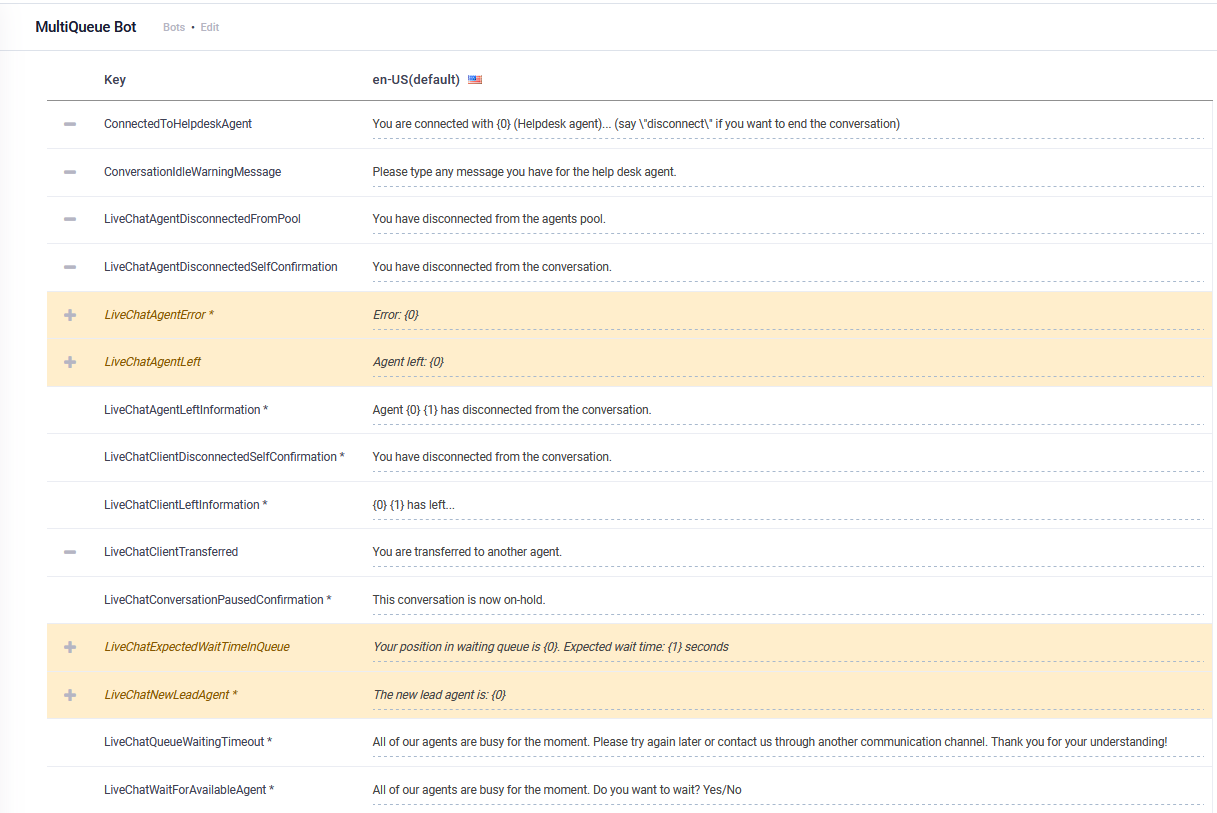
- A message with a − icon is defined on the AI Agent. Select − to remove it from the AI Agent and use the platform default.
- A message in italics on a yellow background, with a + icon, isn't defined on the AI Agent. Druid uses the platform default text. Select + to add the message to the AI Agent so that you can edit it.
- A message marked with an asterisk * can't be removed.
If a special flow sends its own message for the same event, the flow's message replaces the special message.
Live Chat special messages reference
The following table lists each Live Chat special message, who receives it, when Druid sends it, and its default en-US text.
| Special message | Sent to | Sent when | Default text (en-US) |
|---|---|---|---|
ConnectedToHelpdeskAgent
|
Client | An agent joins the conversation. {0} is the agent name. If the tenant administrator defines an alias for the agent user, the alias is used. |
You are connected with {0} (Helpdesk agent)... (say "disconnect" if you want to end the conversation) |
ConversationIdleWarningMessage
|
Client and agent | The live chat has been idle for half of Live chat conversation idle timeout mins. | Please type any message you have for the help desk agent. |
LiveChatAgentDisconnectedFromPool
|
Agent | The agent signs out and leaves the available agents' pool. | You have disconnected from the agents pool. |
LiveChatAgentDisconnectedSelfConfirmation
|
Agent | The agent disconnects from a conversation, unless the Live chat agent disconnected flow sends its own message. | You have disconnected from the conversation. |
LiveChatAgentError
|
Client | An unexpected error occurs, typically with a third-party provider. | Error: {0} |
LiveChatAgentLeft
|
Client | An agent leaves the session (Oracle and other third-party providers). | Agent left: {0} |
LiveChatAgentLeftInformation
|
Client | An agent disconnects. {0} and {1} are the agent's first and last name, or the alias if one is defined. Applies to some providers only. |
Agent {0} {1} has disconnected from the conversation. |
LiveChatClientAssignedToGroup
|
Client | The client is assigned to a group (third-party providers that support groups). | You have been assigned to the following group: {0} |
LiveChatClientDisconnectedSelfConfirmation
|
Client | The client ends the conversation, unless the Live chat client disconnected flow sends its own message. | You have disconnected from the conversation. |
LiveChatClientLeftInformation
|
Agent | The client disconnects. {0} and {1} are the client's first and last name. |
{0} {1} has left... |
LiveChatClientTransferred
|
Client | The agent transfers the conversation to another agent. | You are transferred to another agent. |
LiveChatConversationPausedConfirmation
|
Agent | The agent pauses the live chat. | This conversation is now on-hold. |
LiveChatExpectedWaitTimeInQueue
|
Client | While the client waits. {0} is the position in the queue and {1} the estimated wait time in seconds. |
Your position in waiting queue is {0}. Expected wait time: {1} seconds |
LiveChatFileSizeTooLarge
|
Client | The client uploads a file larger than the allowed size. {0} is the maximum size in KB. |
The size of the file you uploaded is too large. Please upload a file of max {0} Kb. |
LiveChatNewLeadAgent
|
Client | An engaged agent becomes the lead agent (Oracle and other third-party providers). | The new lead agent is: {0} |
LiveChatPauseKeyword
|
— | Not a message. The keyword Druid sends in the chat when the agent selects Pause. See Set up Live Chat. | pause |
LiveChatQueueWaitingTimeout
|
Client | The client has waited longer than Live chat queue waiting timeout mins. | All of our agents are busy for the moment. Please try again later or contact us through another communication channel. Thank you for your understanding! |
LiveChatWaitForAvailableAgent
|
Client | The client enters the waiting queue, unless the Live chat client waiting in queue flow sends its own message. | All of our agents are busy for the moment. Do you want to wait? Yes/No |
Set the pause keyword
LiveChatPauseKeyword is the word Druid sends in the chat when a helpdesk agent selects Pause. While the chat is paused, the idle timeout is suspended. Set the keyword in every AI Agent language so that clients see it in their language.
- In the special messages table, find
LiveChatPauseKeyword. - If the row has a + icon, select + to add the keyword to the AI Agent.
- Select the text in each language column and enter the keyword, for example
pause. - Select Save.
When the agent pauses the chat, Druid sends the keyword in the conversation language. If no keyword is set for that language, Druid uses the en-US value.
 Related Topics